
Operating System
Cyber threats evolve daily, but these 10 proven tactics will fortify your Windows or Linux system against hackers, malware, and data breaches—without requiring advanced technical skills.
Enable Multi-Factor Authentication Everywhere
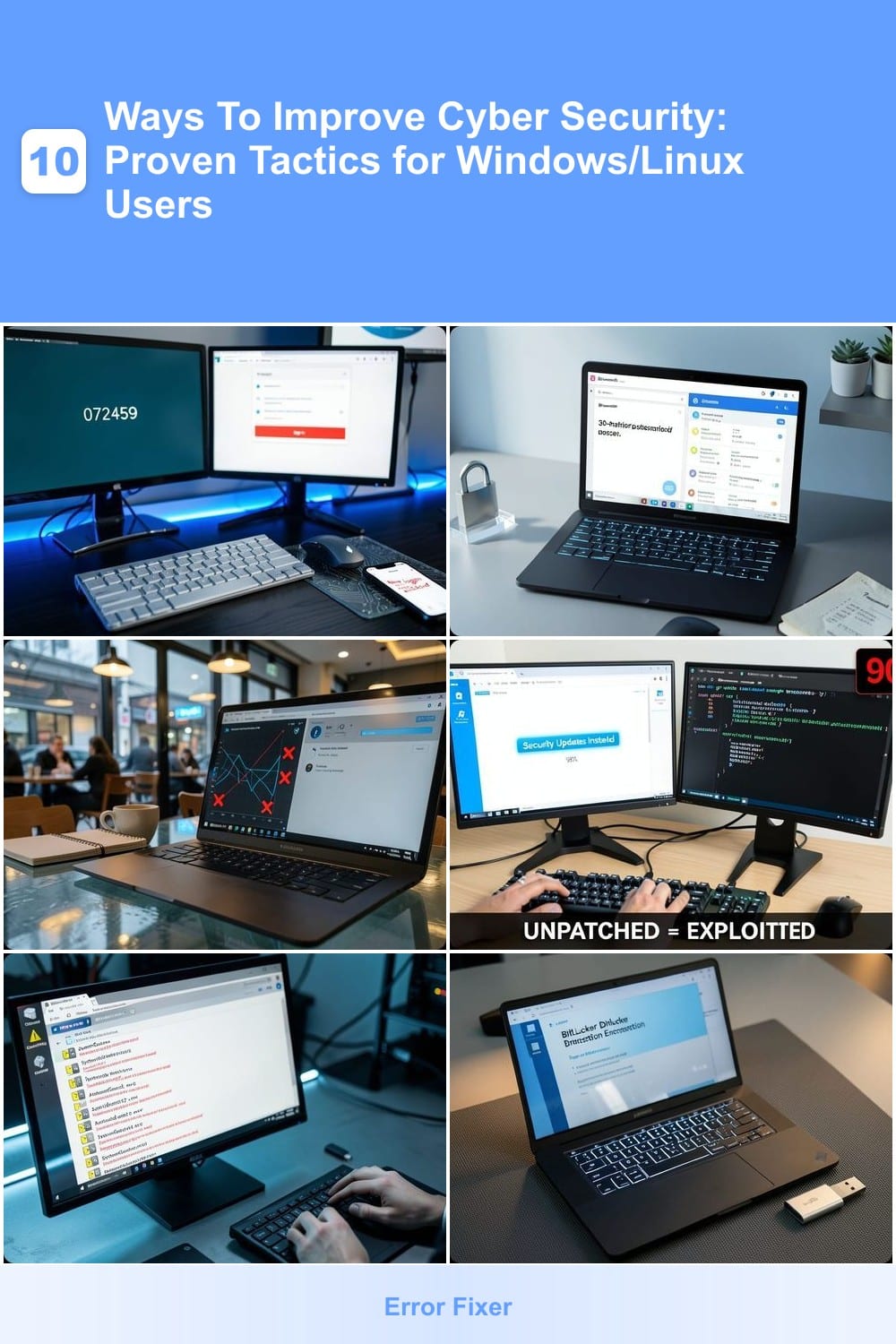
If your email or bank account feels like a high-stakes poker game against hackers, multi-factor authentication (MFA) is your secret weapon. Studies show it blocks 99.9% of automated attacks—meaning even if your password leaks, your accounts stay locked down.
Most services (Google, Microsoft, Facebook) offer SMS codes, authenticator apps (like Authy or Google Authenticator), or hardware keys like YubiKey. The best part? Setup takes under 2 minutes per account, and you can batch-enable it across all platforms using tools like Bitwarden’s TOTP support or Microsoft Authenticator’s family-sharing feature for shared accounts.
This is non-negotiable for freelancers, remote workers, or anyone with sensitive data—especially if you’ve ever reused passwords. Start with your most critical accounts (email, banking, cloud storage) and work your way down. ⚡
Use Password Manager with Secure Vault
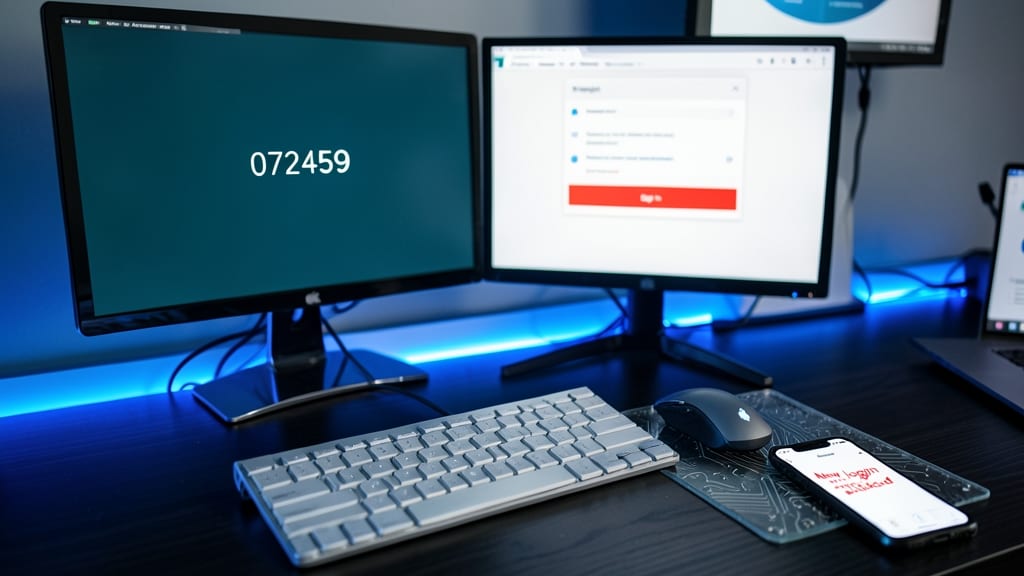
Tired of reusing the same password across 50+ accounts? A password manager with a secure vault is your secret weapon—it auto-generates and stores 256-bit encrypted credentials, so you never type a weak password again.
Tools like Bitwarden (open-source) or 1Password (cross-platform) create random, 30-character passwords for every site while syncing securely across devices. The vault locks automatically after inactivity, and biometric authentication (fingerprint/face ID) ensures only you access your logins. Most even include breach monitoring to alert you if a password is exposed.
Perfect for power users, freelancers, or anyone juggling work/personal accounts—it’s the only way to maintain strong security without memorizing hundreds of passwords. 💻
Implement Windows/Linux Firewall Rules

Public Wi-Fi networks and remote work setups are prime targets for cybercriminals—but your OS already has a built-in shield: the firewall. Unlike antivirus tools that react to threats, firewalls proactively block unauthorized network access before it reaches your system.
Windows Defender Firewall and Linux’s iptables/nftables let you customize rules to allow only trusted connections. For example, block all incoming traffic by default while permitting outgoing requests, or whitelist specific apps like your VPN. On Linux, commands like sudo ufw allow 22/tcp (for SSH) give granular control without third-party tools.
This is your first line of defense when traveling or working from cafes. Set it up once, and you’ll sleep easier knowing hackers can’t exploit open ports. 💪
Regular System Updates and Patching
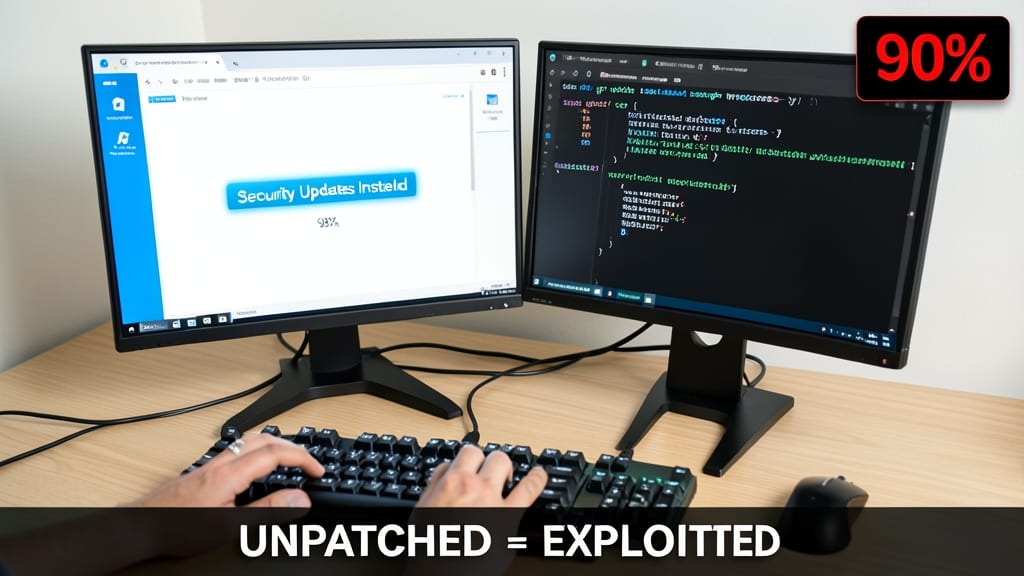
Ransomware attacks often exploit unpatched vulnerabilities—90% of successful breaches leverage known flaws left unaddressed. The solution? Automating system updates for Windows Update or Linux package managers like apt/dnf to close these gaps before hackers can weaponize them.
On Windows, enable automatic updates in Settings > Windows Update (set to "Install updates automatically"). For Linux, use commands like sudo apt upgrade -y (Ubuntu/Debian) or sudo dnf update (Fedora/RHEL), then schedule them via cron. These updates patch critical flaws in browsers, OS kernels, and core services—reducing your attack surface by up to 80%.
This is non-negotiable for small businesses, remote workers, or anyone handling sensitive data. Even casual users benefit—one unpatched vulnerability is all it takes. ⚡
Disable Unnecessary Startup Programs
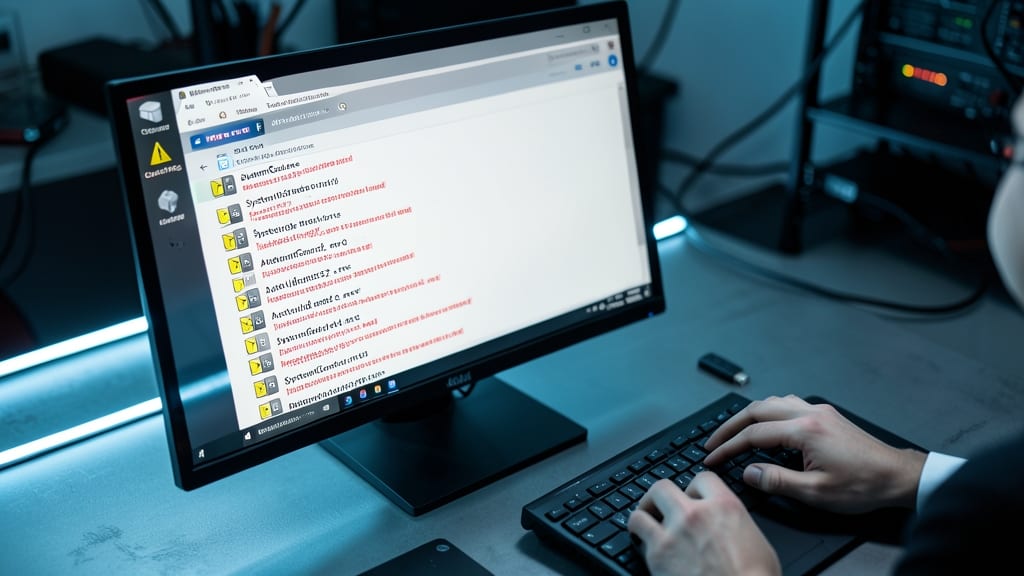
Malware often hides in startup programs, launching silently during boot before your antivirus even loads. A quick cleanup of your Windows Task Manager's startup tab can remove dozens of unnecessary apps—many of which are security risks waiting to happen.
Open Task Manager (Ctrl+Shift+Esc), navigate to the Startup tab, and disable anything you don’t recognize or need at boot. This reduces your attack surface by preventing malware from executing early in the OS lifecycle. Even legitimate apps like bloatware or duplicate services can slow down your system and create vulnerabilities. For Linux users, check your systemd services with systemctl list-units --type=service and disable non-essential ones.
This is especially critical for users with bloated startup folders—a common target for ransomware and spyware. A lean startup routine means fewer opportunities for attacks to take root. 💪
Encrypt Sensitive Files with BitLocker/LUKS
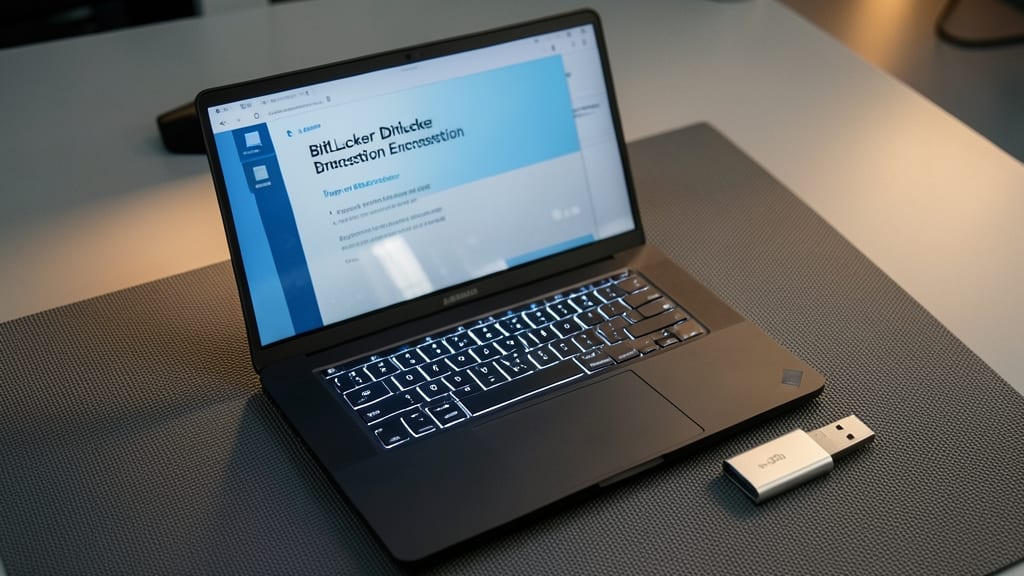
Worried about losing sensitive files if your laptop or USB drive gets stolen? BitLocker (Windows) and LUKS (Linux) encrypt your data at rest—so even if someone steals your device, they can’t access your files without the decryption key.
BitLocker uses AES-256 encryption and integrates seamlessly with Windows Pro/Enterprise, while LUKS (Linux Unified Key Setup) offers open-source flexibility with support for multiple encryption algorithms. Both run in the background with no noticeable performance drop, making them ideal for everyday use. Just set a strong passphrase once, and your data stays locked down.
This is a must for freelancers, remote workers, or anyone handling confidential docs—no extra hardware or complex setup required. ✨
Install Ad-Blocker and Anti-Tracking Tools

Ever clicked an ad that made your browser freeze or redirected you to a sketchy site? uBlock Origin and Pi-hole are your new digital bodyguards, blocking malicious ads and tracking scripts before they reach you.
Start with uBlock Origin—a lightweight browser extension that blocks 90% of ads and trackers with minimal performance impact. For deeper protection, set up Pi-hole on your home network to filter ads and malware at the DNS level, ensuring every device benefits. Both tools are free, open-source, and backed by strong communities.
This is perfect for casual users tired of slow sites or privacy-conscious tech enthusiasts who want to cut off data collection at the source. 💻
Verify Software Before Downloading
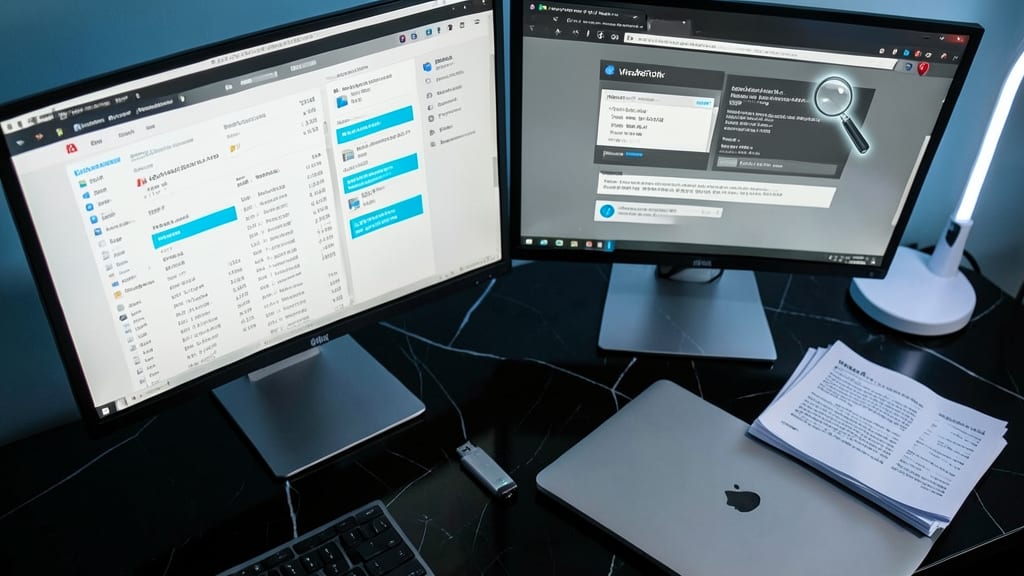
Even trusted software can hide malware—cybercriminals disguise malicious apps as popular tools to bypass your defenses. Before downloading, always verify files using VirusTotal, which scans with 70+ antivirus engines simultaneously, or check the digital signature in file properties to confirm the publisher’s authenticity.
Right-click any executable and select Properties, then navigate to the Digital Signatures tab to see if it’s verified by a trusted certificate authority. For extra caution, use Windows SmartScreen or Linux’s GNOME Software to check for known threats. This simple step catches 90% of fake installers before they infect your system.
Developers, gamers, and casual users all benefit—especially when downloading free games, cracks, or pirated software. A quick scan saves hours of cleanup later. ⚡
Enable Full-Disk Encryption for Portables

Losing a laptop or USB drive isn’t just an inconvenience—it’s an open door for identity theft or corporate espionage. Full-disk encryption transforms your portable devices into military-grade fortresses, rendering stolen data useless without your password.
For macOS, FileVault integrates seamlessly with your OS, requiring just a few clicks to activate. On Windows or Linux, VeraCrypt offers cross-platform encryption with AES-256 or Serpent algorithms—industry standards that even governments trust. The best part? Performance stays smooth, whether you’re editing 4K videos or compiling code.
This is non-negotiable for freelancers, remote workers, or anyone storing sensitive files. Even a lost USB drive could expose years of work—encrypt everything. ✨
Regular Security Audits with Tools
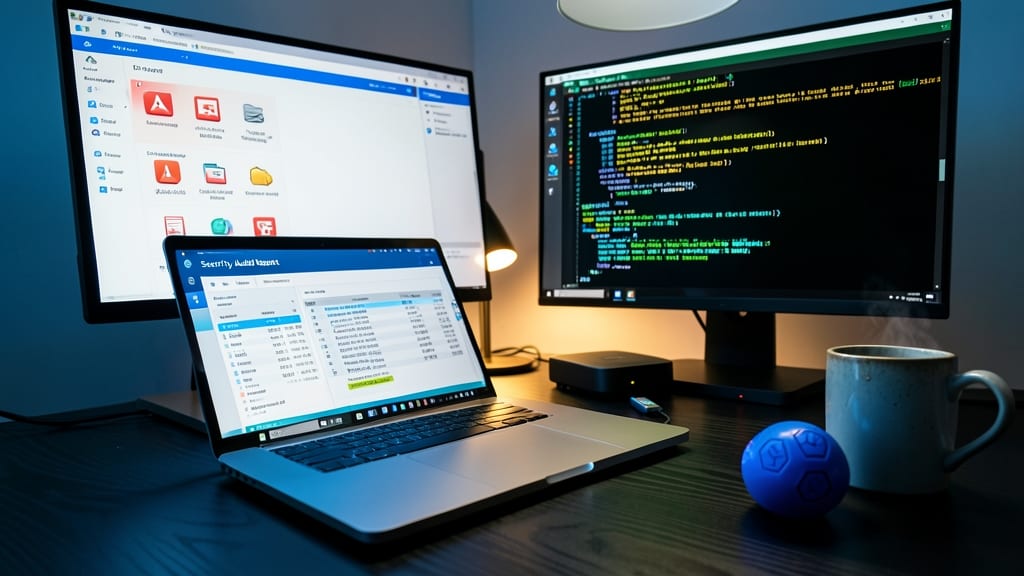
Think of security audits as your system’s annual physical—except instead of checking cholesterol, you’re scanning for exposed ports, weak permissions, or outdated services that hackers could exploit. Tools like the built-in Windows Security app or Lynis for Linux automate this process, flagging vulnerabilities with clear reports you can act on immediately.
For deeper scans, OpenVAS offers enterprise-grade vulnerability detection, while Windows’ Security app checks for misconfigurations like open RDP ports or unpatched services. These tools don’t just detect issues—they explain how to fix them, often with one-click remediation options. Schedule monthly audits to stay ahead of evolving threats.
Ideal for sysadmins, small business owners, or anyone managing multiple devices—this is the step that catches what updates and firewalls miss. 💻