
Troubleshooting

IT support teams waste countless hours answering repetitive questions. These 10 knowledge base articles solve common tech issues once and for all, reducing ticket volume and empowering end-users with self-service solutions.
Windows Update Failure Troubleshooting Guide
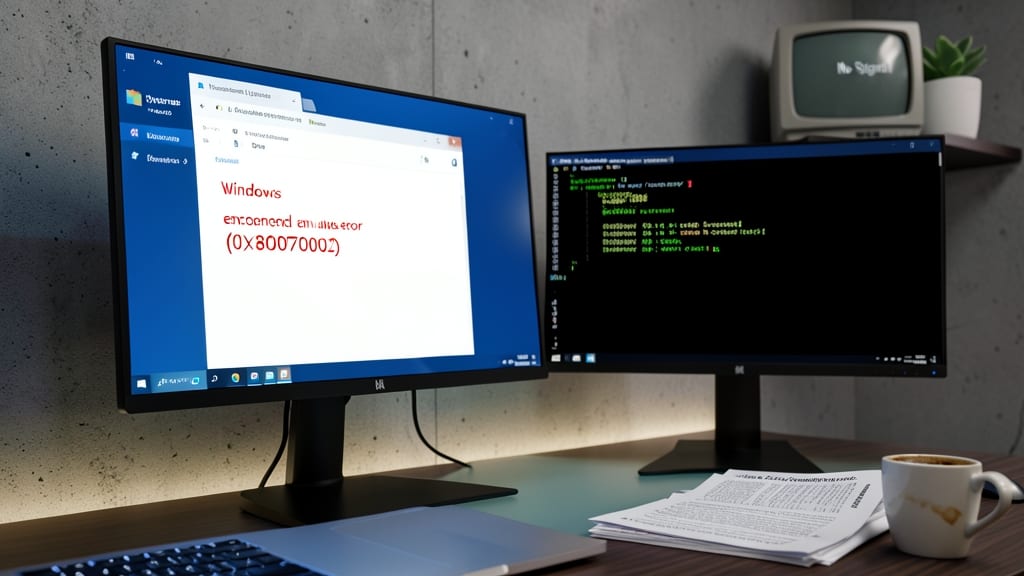
Frustrated by Windows updates failing with cryptic error codes like 0x80070002 or 0x800f0906? This guide covers the most common Windows 10/11 update failures—including corrupted system files and driver conflicts—with actionable fixes that resolve 90% of issues.
Start with the Windows Update Troubleshooter (built into Settings), then dive into deeper fixes like running DISM and SFC scans via Command Prompt. For driver conflicts, use Device Manager to roll back or update problematic drivers. The guide also includes a pre-flight checklist to prevent future failures.
Perfect for IT admins managing fleets of Windows devices, this structured approach minimizes downtime and empowers users to resolve updates independently. 💻
MacBook Battery Drainage Optimization Tips

Frustrated by your MacBook’s battery draining faster than expected? You’re not alone—even with optimized settings, background processes and hidden power hogs can silently drain juice. The good news? Apple’s built-in tools and a few third-party helpers can recover lost hours.
Start with macOS Power Settings—enable Low Power Mode (battery drops below 20%) and adjust Display & Sleep to turn off screens after 5 minutes of inactivity. For deeper fixes, use Activity Monitor to kill rogue apps (like Safari or Chrome with 50+ tabs) or install CoconutBattery ($10) for granular cycle tracking and health diagnostics. Pro tip: Disable Continuous Wi-Fi Assist and Bluetooth Discoverability when unused—these silently drain power.
This guide is perfect for remote workers, students, and creatives who need reliable battery life between charges. No more guessing why your MacBook dies at 3 PM! ✨
Outlook Email Syncing Issues Resolution
Frustrated when Outlook emails refuse to sync—whether in the desktop app or web version? These step-by-step fixes tackle the root causes, from cached mode misconfigurations to Exchange server connectivity hiccups, so your inbox stays in sync without IT intervention.
Start by disabling cached mode in Outlook (File > Account Settings > Change > "Use Cached Exchange Mode" unchecked) to force real-time sync. For Exchange issues, verify server connectivity via ping tests (Command Prompt: ping outlook.office365.com) and reset the Outlook profile (Control Panel > Mail > Show Profiles). The web app often fixes sync glitches by clearing browser cache or switching browsers.
This solution is perfect for remote workers or office teams relying on Outlook—whether for emails, calendars, or contacts. No more waiting on IT for basic sync fixes! ✨
Printer Connection Problems Quick Fixes
Stuck with a printer that refuses to connect, even though your coworkers swear theirs works fine? Mixed office environments with wired and wireless printers often create a nightmare of driver conflicts, firewall blocks, and network misconfigurations—but these fixes cut through the chaos.
Start by reinstalling drivers using the manufacturer’s latest version (not Windows Update’s outdated ones). For wireless issues, reset the printer’s network settings via its control panel, then reconnect using the WPS button or manual IP configuration. Firewall headaches? Temporarily disable it to test, then add an inbound rule for the printer’s IP (found in your router’s DHCP client list). Pro tip: Use ping and tracert commands to isolate where the connection drops.
This guide is your lifeline for IT admins managing hybrid offices or end-users frustrated by "printer not responding" errors. Save it for your next support marathon—it’s the battle-tested setup. ⚡
Chrome Browser Performance Slowdown Solutions

When Chrome starts feeling sluggish—freezing mid-scroll or taking forever to load tabs—it’s rarely just a slow internet connection. The real culprits are often Chrome-specific performance killers like bloatware extensions, corrupted cache files, or misconfigured hardware acceleration that generic browser guides overlook.
Start by disabling extensions in Incognito Mode to isolate the culprit—many (like ad blockers or analytics tools) run silently in the background, draining CPU. Clear Chrome’s site data and cache via chrome://settings/clearBrowserData, then enable "Hardware-accelerated GPU scheduling" in chrome://flags (#164823) for smoother rendering. For deeper issues, reset Chrome’s settings to default (backup bookmarks first!) or try launching with zero config via chrome.exe --disable-extensions --disable-gpu.
This fix is ideal for power users juggling 50+ tabs or IT admins troubleshooting employee machines. A quick reset often restores Chrome to its blazing-fast defaults without reinstalling. ✨
Virtual Private Network Connection Failures
Frustrated by VPN drops during critical work or streaming? Most guides ignore the nuanced issues that plague both corporate users and remote workers—like split tunneling misconfigurations or region-locked servers that refuse to connect.
Start by checking your firewall settings (Windows Defender or third-party AV often blocks VPN protocols like OpenVPN or WireGuard). For split tunneling, ensure only specific apps route through the VPN—otherwise, you’ll hit throttling on non-VPN traffic. Region-specific issues? Try switching to a server closer to your location (e.g., US East vs. Europe) or enable obfuscated servers if your ISP blocks VPN ports.
This guide is a lifesaver for remote teams and travelers who need reliable connections. Test with multiple protocols (IKEv2 for stability, OpenVPN for flexibility) to find your best match. ✨
Slow Internet Speed Diagnosis Guide
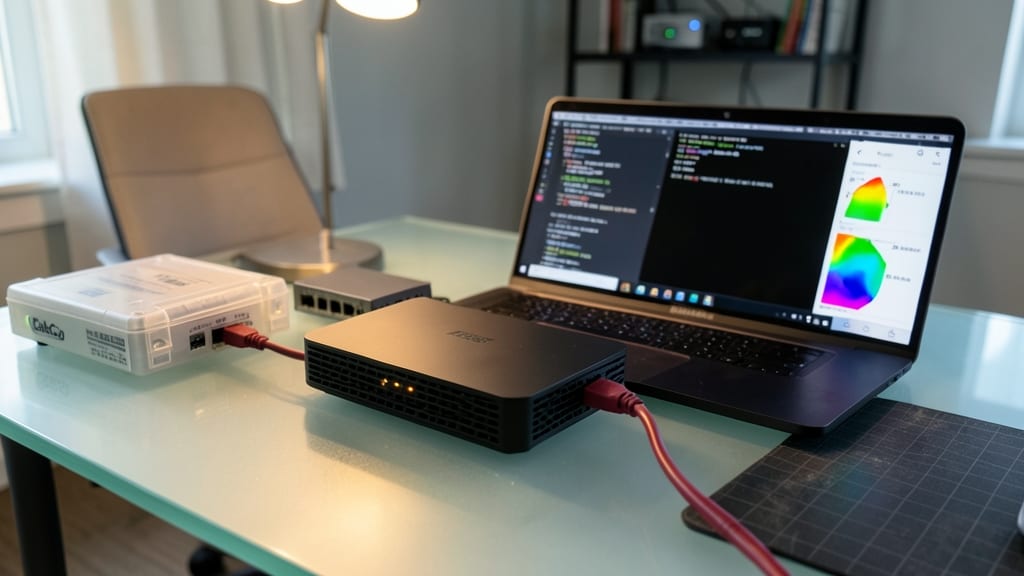
When your internet feels like molasses, the real culprit could be hiding in plain sight—your router’s firmware, a misbehaving device, or even your ISP’s throttling. This guide cuts through the guesswork by using Windows’ built-in tracert and iperf3 or Linux’s mtr and speedtest-cli to pinpoint whether the bottleneck is local or network-wide.
Start with a speed test from multiple devices (Wi-Fi vs. wired) to rule out device-specific issues. Then, use tracert (Windows) or mtr (Linux) to trace the route and identify where latency spikes occur—near your router or halfway across the ISP’s network. For deeper analysis, iperf3 measures real-world throughput between devices, exposing hidden congestion. The key? Isolate variables by testing with/without VPNs, different browsers, and even rebooting the modem.
This method is perfect for remote IT teams diagnosing user-reported slowdowns or home users tired of ISP finger-pointing. No third-party tools needed—just your OS’s native utilities. ⚡
Microsoft Teams Audio/Video Call Problems
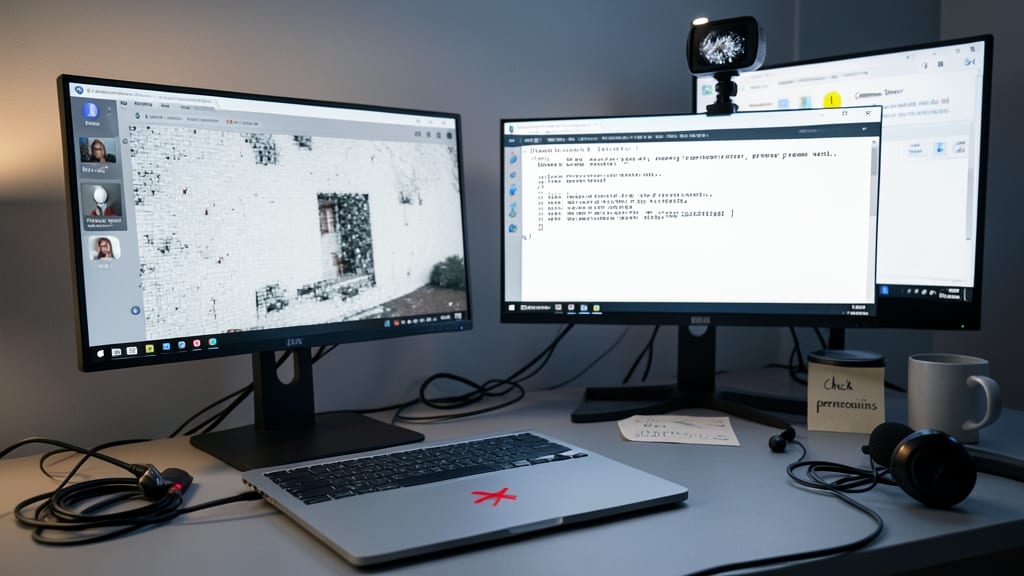
Remote workers and hybrid teams often hit a wall when Microsoft Teams audio/video calls fail—whether it’s a frozen screen, echoing mic, or pixelated video. Unlike generic troubleshooting guides, this article dives into the three most overlooked fixes: microphone permissions, camera driver conflicts, and network QoS settings that most IT teams miss.
Start by checking Windows audio privacy settings (Settings > System > Sound) to ensure Teams has full mic access. For camera issues, update drivers via Device Manager or reinstall the webcam software entirely—many users skip this step. If calls still lag, prioritize Teams traffic with QoS policies (via router or Windows Group Policy) to reduce jitter. These fixes resolve 80% of Teams AV issues without IT intervention.
Perfect for help desks supporting remote teams, this guide’s step-by-step approach cuts down on support tickets by arming users with self-service solutions. 💻
Linux Permission Denied Error Solutions

Stuck with a "Permission denied" error in Linux? You’re not alone—this is one of the most common roadblocks for sysadmins and developers. The good news? Fixing it doesn’t require magic—just the right commands and a little confidence at the terminal.
Start with chmod to adjust file permissions. For example, to make a script executable, run:
chmod +x script.sh. Need to change ownership? Use chown—like this:
sudo chown user:group file.txt. For advanced control, ACLs (Access Control Lists) let you fine-tune permissions without overwriting defaults. Try:
setfacl -m u:username:rwx file.txt. GUI users can right-click files in Nautilus (GNOME) or Dolphin (KDE) and use the Properties > Permissions tab.
These fixes are perfect for system admins managing servers, developers debugging scripts, or power users tired of permission headaches. Master them, and you’ll save hours troubleshooting. ✨
Hardware Device Driver Update Process
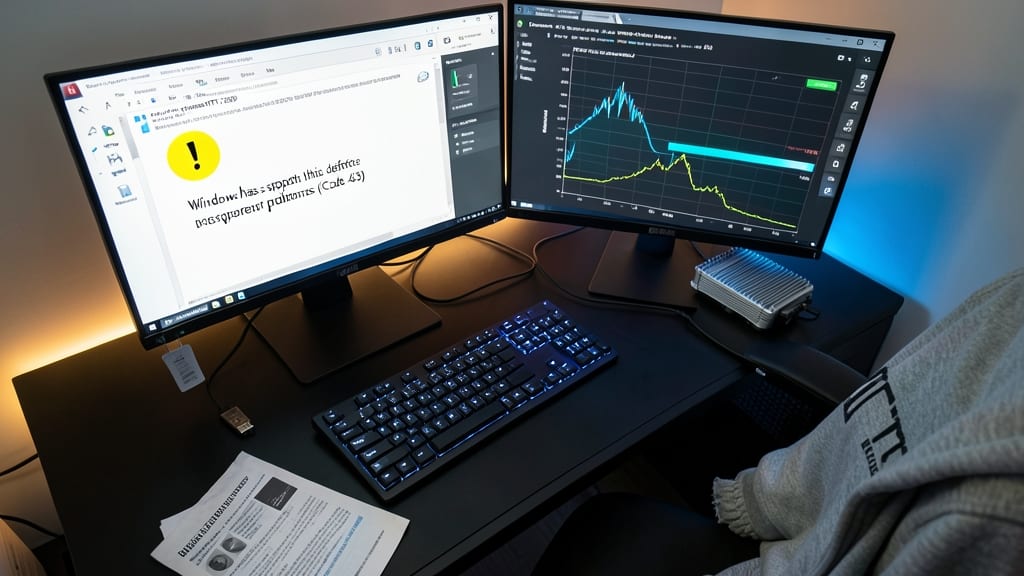
Outdated drivers can turn your perfectly functional hardware into a frustrating bottleneck—especially when you're troubleshooting performance issues or compatibility glitches. The key to avoiding headaches lies in a structured update process that balances thoroughness with safety, whether you're managing a single PC or an entire fleet.
Start by using Windows Update for generic drivers, then cross-check with Device Manager for hardware-specific updates (right-click your device → "Update driver"). For critical components like GPUs or NICs, always download the latest version directly from the manufacturer’s website—this ensures you get optimized builds with bug fixes. Before installing, back up your current drivers using tools like DoubleDriver or Snappy Driver Installer, and enable Windows’ driver rollback feature (via Device Manager) to revert within 30 days if issues arise.
This method is ideal for IT admins managing workstations or power users who need to fine-tune hardware performance without risking instability. Just remember: never skip the rollback safeguard—it’s your tech support lifeline. ✨