
PowerPoint
PowerPoint transitions can transform a basic presentation into a polished, professional experience. These seven transition effects help you create smooth slideshow flow while keeping your audience engaged without distracting from your content.
Fade Slide Transition

When you need a subtle yet polished way to move between slides without overshadowing your content, the Fade transition delivers effortlessly. This classic effect dissolves one slide into the next, maintaining focus on your message while adding a touch of professionalism—perfect for boardrooms, client pitches, or any setting where distraction-free delivery matters.
Available in all PowerPoint versions (from 2010 to 365), the Fade transition works seamlessly with zero setup—just apply it to your slides, adjust the speed (0.5s to 5s), and pair it with a solid color or gradient background for maximum clarity. Unlike flashier effects, it avoids motion sickness and keeps your presentation feeling timeless and refined.
Ideal for corporate trainers, executives, or educators, this transition ensures your audience stays engaged with your content—not the visuals. It’s the go-to for presentations where subtlety speaks louder than spectacle. ✨
Slide Horizontal Pane
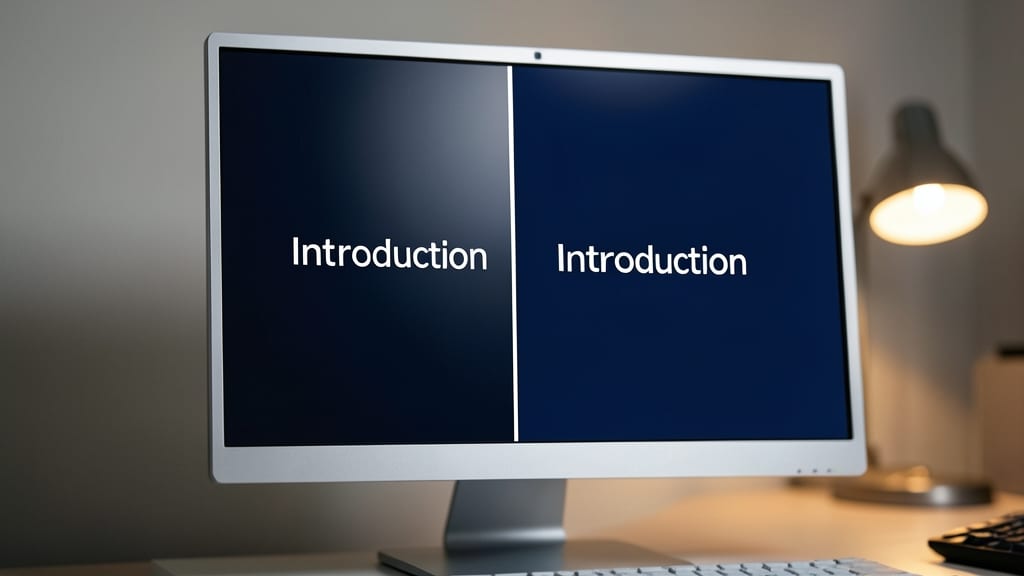
Need to guide your audience through a narrative with intentional pacing? The Slide Horizontal Pane transition splits your screen into a clean, directional reveal—like a book flipping its pages. Unlike static fades, this effect maintains visual continuity while emphasizing progression, making it ideal for storytelling where sequence matters.
Available in PowerPoint 2016 and later, this transition lets you control the reveal direction (left-to-right or right-to-left) and adjust speed for dramatic or subtle pacing. The dividing line creates a natural pause, ensuring your audience absorbs each slide before moving forward. For presentations with timelines, case studies, or step-by-step processes, this transition keeps focus sharp while adding cinematic flair.
Perfect for educators, marketers, or speakers who want to highlight sequential importance without overwhelming the audience. Just avoid overusing it—save this one for your key storytelling moments. ✨
Morph Transition
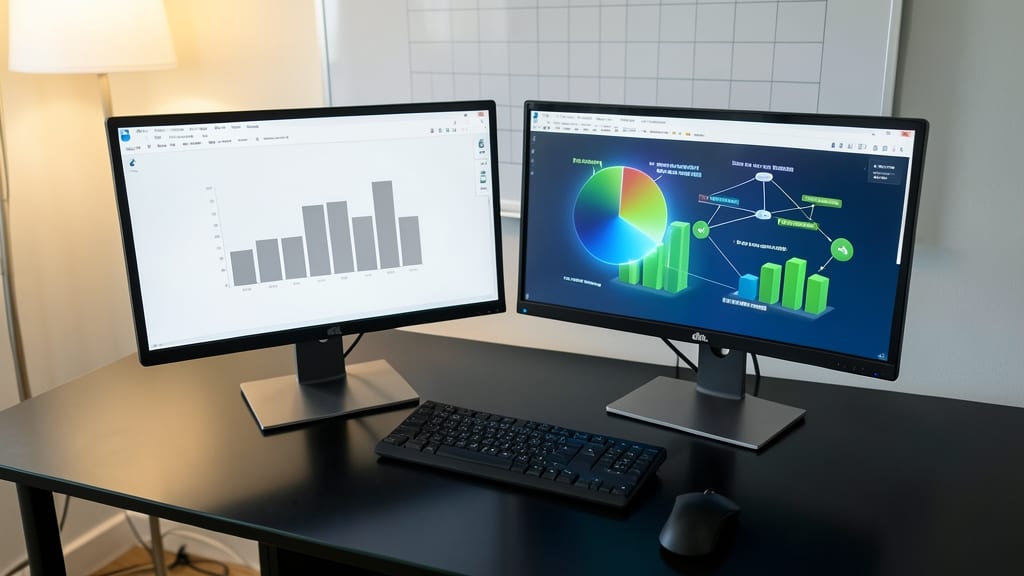
Tired of static slides that make your data feel lifeless? The Morph Transition in PowerPoint 365 is a game-changer for presentations where every detail matters. Unlike basic fades or wipes, Morph lets you animate shapes, text, and objects between slides—perfect for showing incremental changes in charts, graphs, or diagrams without losing clarity.
With smooth interpolation between layouts, you can morph a bar chart into a line graph, tweak a single data point, or even adjust slide backgrounds—all while keeping the transition seamless. This exclusive 365 feature works best when slides share similar structures, like financial reports or progress updates, where you want to emphasize evolution over abrupt changes.
Data analysts and business presenters will love how Morph keeps focus on the content while adding a polished, professional touch. Just ensure your slides use similar layouts for the best effect! ✨
Push Transition
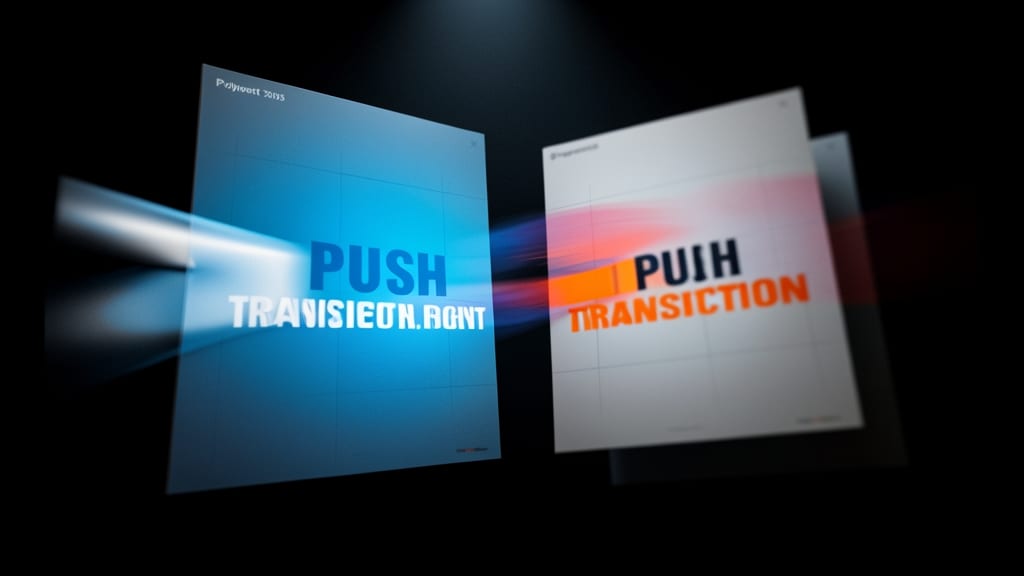
Want to make your presentation feel like a blockbuster movie scene? The Push Transition delivers that cinematic punch by sliding slides outward or inward, creating a bold visual break between key moments.
Available in PowerPoint 2013 and later, this transition lets you choose between push left, right, up, or down—ideal for highlighting dramatic shifts in content. Unlike subtle fades, the push effect grabs attention while keeping the focus on your message. Pair it with bold typography or striking visuals to maximize impact.
Perfect for creative professionals, designers, or anyone pitching bold ideas—this transition turns slideshows into dynamic storytelling tools. ⚡
Wipe Transition
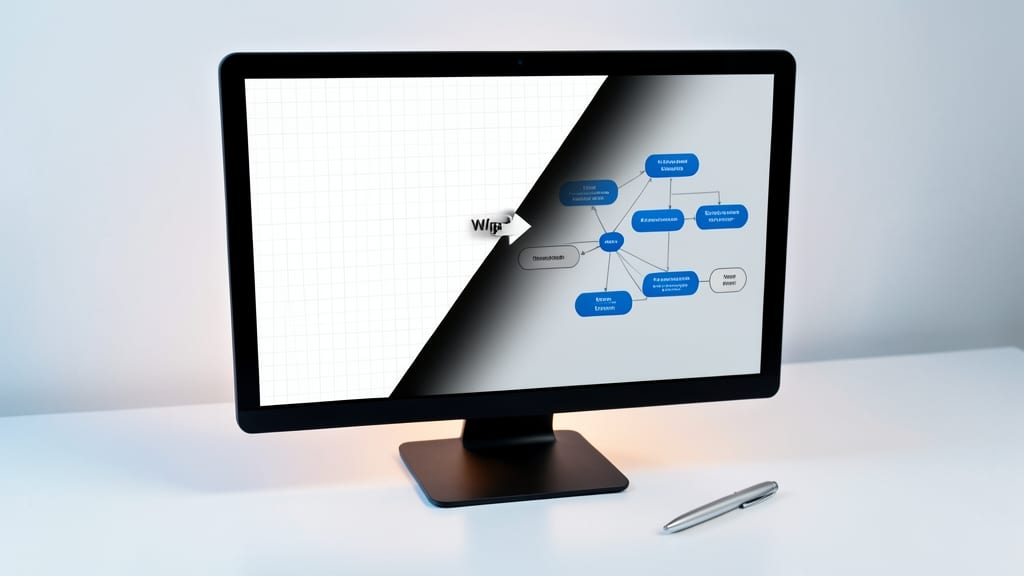
Need to guide your audience through complex ideas step-by-step? The Wipe Transition lets you control how information unfolds by choosing from left-to-right, top-to-bottom, or diagonal directions—perfect for educational content where pacing matters.
Unlike other transitions, this one lets you pause the wipe mid-slide, revealing only what you want when you want. It’s available in PowerPoint 2013 and later, including Office 365, and works seamlessly with timing controls for precise delivery. The directional wipe creates a natural flow, ideal for tutorials or lesson plans where you want to emphasize progression.
Educators and trainers will love this for structured presentations—whether you're explaining a process or breaking down data. It’s the go-to when you need intentional control over how your audience absorbs information. ✨
Zoom Transition
Want to make your keynote moments feel like a spotlight? The Zoom Transition in PowerPoint lets you shrink or expand slides to draw attention to key points, creating a cinematic effect that keeps your audience engaged.
Adjust the zoom speed (from subtle to dramatic) and direction (in or out) to match your presentation’s energy. Unlike static transitions, this effect works best with bold visuals—think high-contrast slides or impactful graphics—to maximize its dramatic flair. It’s available in PowerPoint 2013 and later, including the latest 365 version.
Perfect for product launches, investor pitches, or motivational talks, where you need to emphasize a single idea. Just avoid overusing it—like any transition, it should enhance, not distract. ✨
Custom Animation Paths
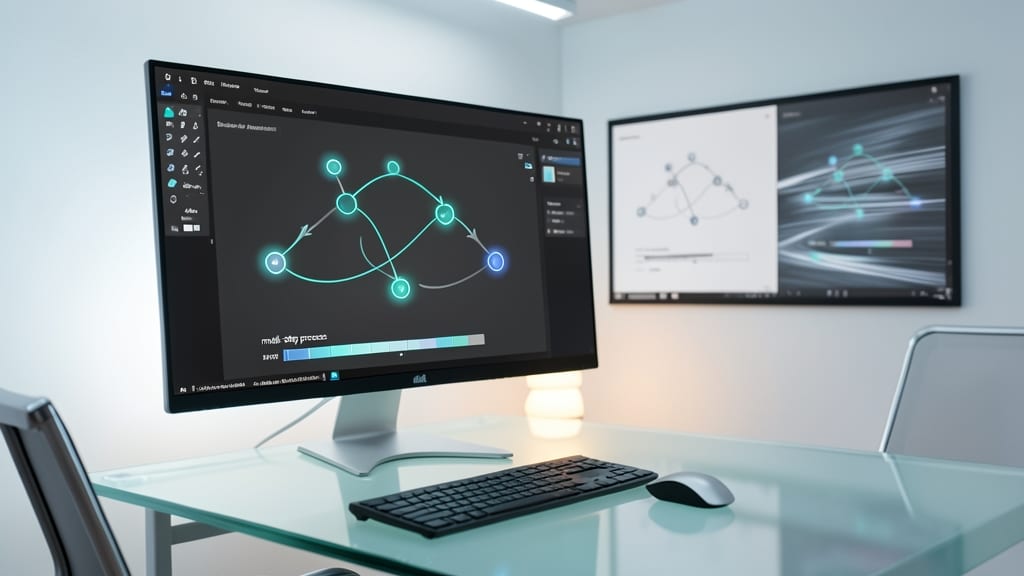
When your presentation involves complex workflows or multi-step processes, PowerPoint’s Custom Animation Paths let you design transitions that follow your exact narrative flow. Unlike standard transitions, this feature lets you draw freehand or use preset paths to guide slides along custom routes—perfect for visualizing data pipelines, engineering diagrams, or step-by-step tutorials.
To use it, navigate to the Animation tab, select Custom Path, and choose between straight lines, curves, or freeform drawing. You can even adjust speed and timing for each segment, ensuring smooth pacing. This level of control is especially useful for technical audiences who need to follow intricate sequences without losing context.
Engineers, developers, and educators will appreciate how this tool turns abstract concepts into visually intuitive transitions. It’s the ultimate way to make your presentation’s flow as precise as the content itself. ✨