
Software
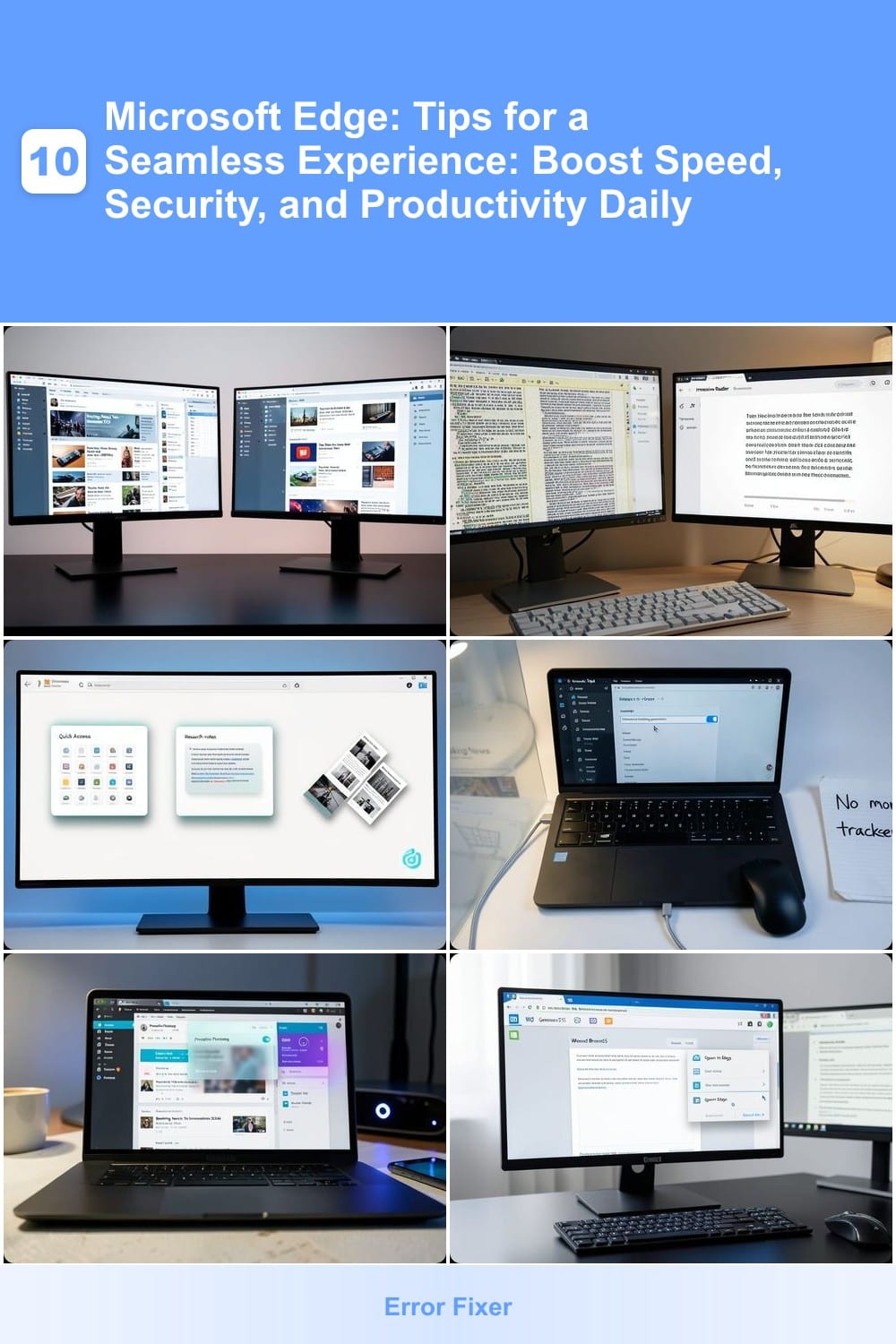
Microsoft Edge isn’t just a browser—it’s a productivity powerhouse packed with hidden features. These seven tips will transform your browsing experience, making it faster, more secure, and tailored to your workflow, whether you're working remotely or just navigating the web smarter.
Enable Vertical Tabs for Space Efficiency
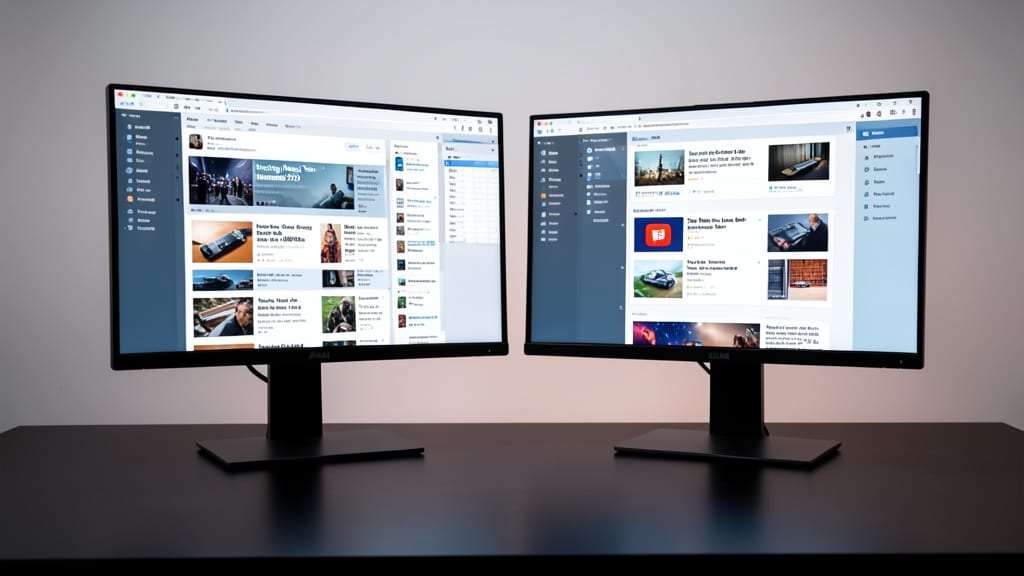
Struggling to fit all your open tabs on a single screen? Microsoft Edge’s vertical tab layout is a game-changer for multi-monitor users or anyone juggling dozens of tabs at once. This feature transforms your tab bar from a horizontal clutter zone into a clean, scrollable sidebar—freeing up precious screen real estate while keeping every tab just a click away.
To enable it, open Edge’s settings (press Alt+F then Settings), navigate to Appearance, and toggle "Show tabs vertically". Once activated, you’ll notice tabs stack neatly on the left side of your window, reducing horizontal sprawl. The feature also works seamlessly with dual monitors, letting you dedicate one screen to content while using the vertical bar for navigation. Pro tip: Pin your most-used tabs for instant access!
This tweak is perfect for developers managing multiple IDE windows, researchers tracking sources, or anyone working across spreadsheets, docs, and reference sites. Say goodbye to tab overload—your workspace just got a lot more organized. ✨
Use Immersive Reader for Focused Reading
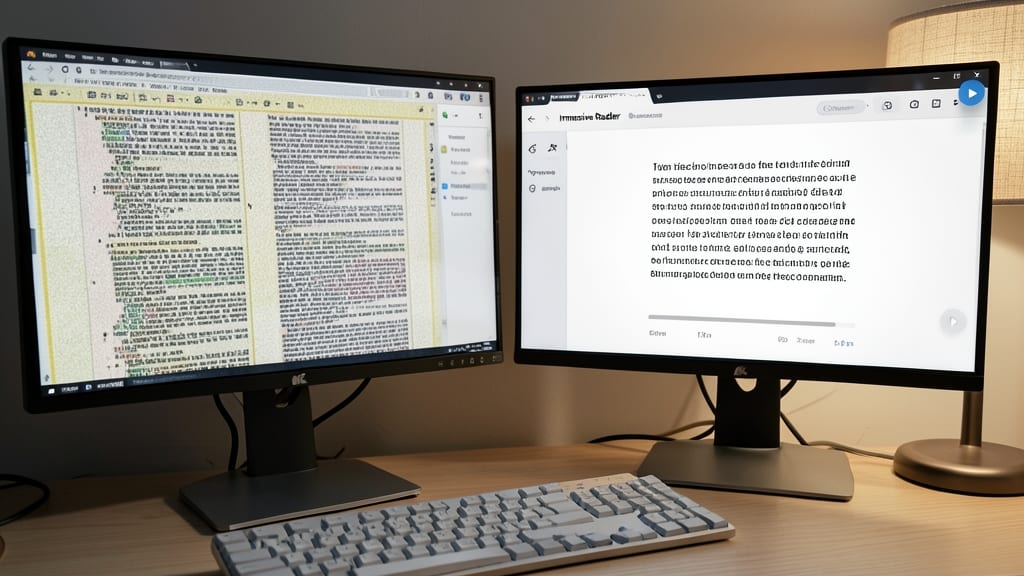
Drowning in dense articles or research papers? Microsoft Edge’s Immersive Reader transforms the way you consume text by stripping away distractions with a minimalist, distraction-free interface.
Adjust font size, spacing, and line length to your comfort, or let the text-to-speech feature read aloud with customizable voice speeds. It even includes a dyslexia-friendly font and highlights each word as it’s spoken, perfect for hands-free learning or multitasking.
This tool is a lifesaver for students, researchers, or professionals who need to absorb complex material efficiently. Try it next time you’re buried in a long article—your eyes (and brain) will thank you. ✨
Customize Startup Pages with Collections
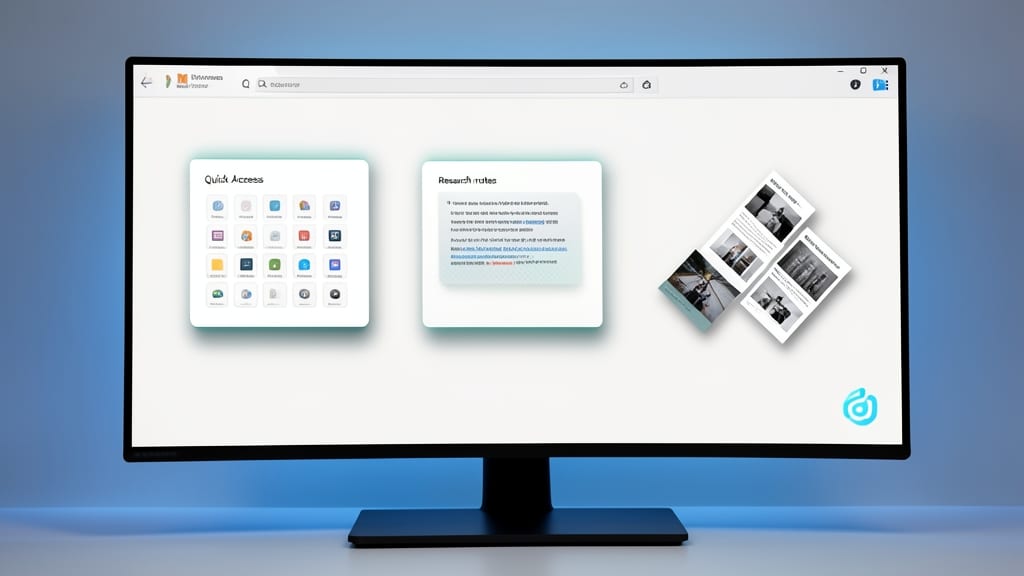
Tired of staring at a cluttered new tab page every time you open Edge? Collections turns your startup screen into a sleek, custom dashboard where you control exactly what loads first—whether it’s your favorite bookmarks, research notes, or saved web snippets.
This feature lets you group content into visual themed collections (like "Work Projects" or "Travel Planning") that appear as a grid when Edge launches. With zero-config syncing, your collections stay updated across devices, and the instant-load design means no waiting for tabs to populate. You can even add sticky notes or highlight key sections directly in the collection.
Perfect for researchers, freelancers, or anyone juggling multiple projects—this is the ultimate one-stop dashboard for power users who hate wasted screen time. ✨
Block Trackers with Enhanced Privacy Settings
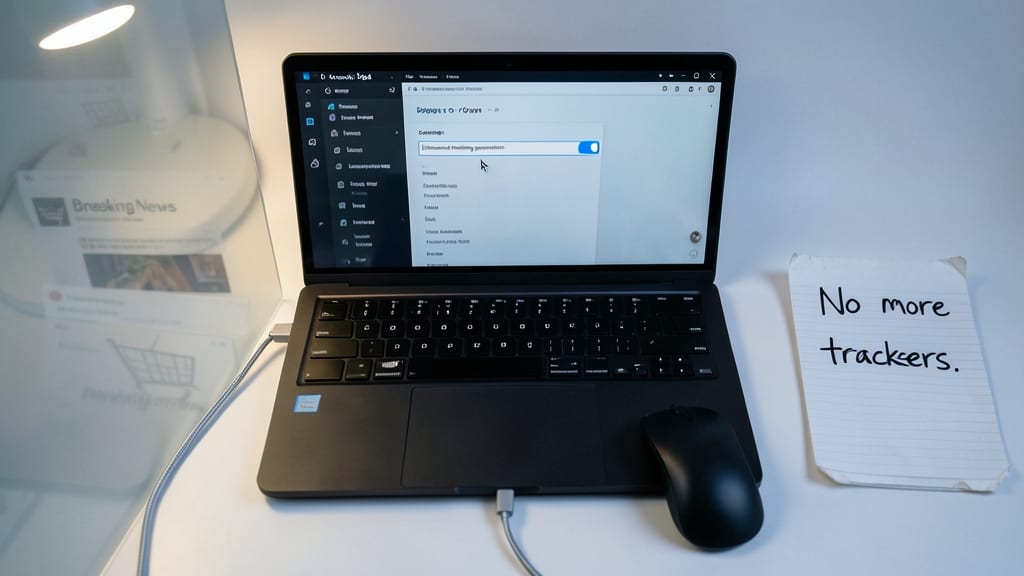
Tired of ads following you across sites like a digital shadow? Microsoft Edge’s Enhanced Privacy Settings lets you block third-party cookies, trackers, and ads with a single toggle—no extensions required.
Enable it in Settings > Privacy, search, and services under Enhanced tracking prevention, then choose Strict mode to block all trackers or Balanced for a middle ground. This stops cross-site tracking while keeping legitimate site functionality intact. For extra security, pair it with InPrivate mode for fully anonymous browsing.
Perfect for journalists, researchers, or anyone who values online anonymity, this feature turns Edge into a fortress against digital surveillance. 💪
Speed Up Loading with Predictive Preloading
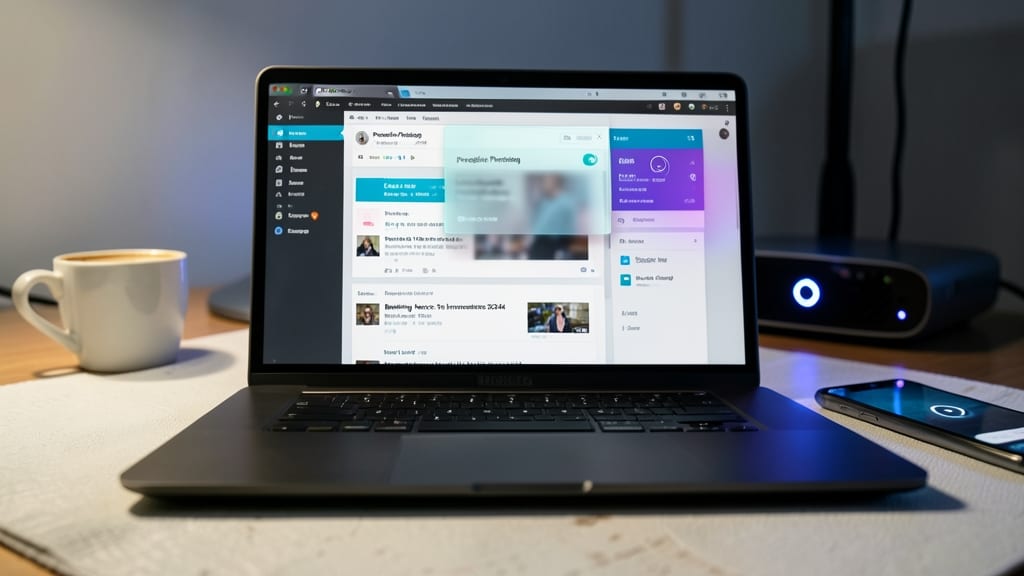
Tired of waiting for pages to load on spotty connections? Microsoft Edge’s Predictive Preloading feature is a game-changer for users with unreliable networks. By analyzing your browsing habits, Edge quietly preloads likely next sites in the background—often before you even click.
This zero-configuration tool works automatically once enabled in Settings > System > Predictive Preloading. Studies show it can reduce load times by up to 40% for frequented sites, making it ideal for remote workers or areas with inconsistent bandwidth. The best part? It uses minimal data, so you won’t notice the background activity.
Perfect for travelers, students, or anyone on public Wi-Fi, this feature transforms frustrating waits into seamless browsing. Give it a try and feel the difference! ✨
Integrate Edge with Microsoft 365 Apps
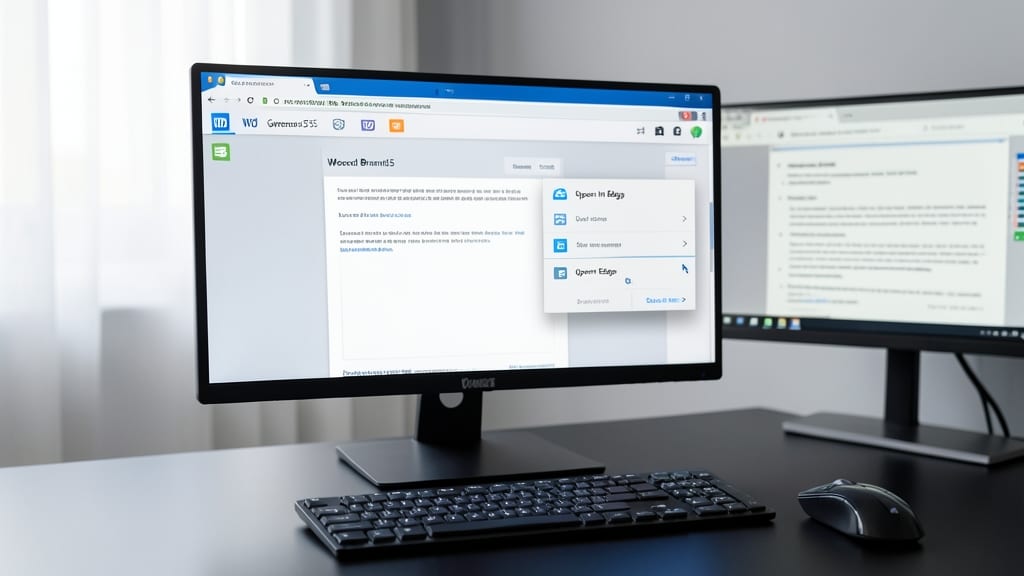
Tired of switching between Edge and Microsoft 365 apps to edit documents? This integration turns your browser into a full-fledged Office workspace. With just a click, you can open and edit Word, Excel, or PowerPoint files directly in Edge—no need to launch the full desktop app.
Simply right-click a file in Edge and select "Edit in Office" to launch the lightweight web version. Changes sync automatically with your OneDrive or SharePoint files, and you get real-time collaboration with colleagues. The best part? It works offline too, so you’re never stuck without access to your documents. ⚡
Automate Tasks with Edge Workspaces
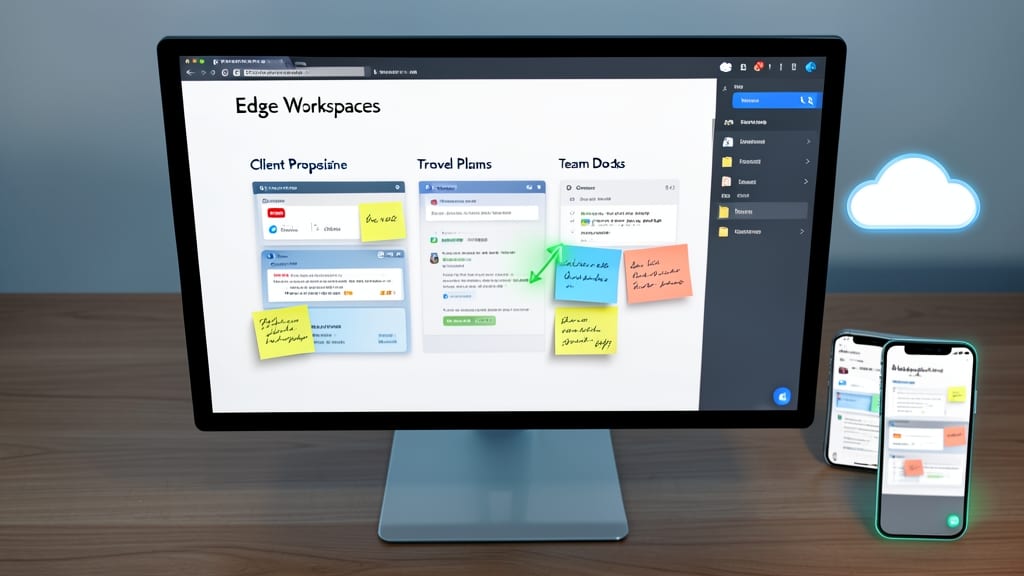
Tired of juggling endless tabs, scattered notes, and lost files across devices? Edge Workspaces turns chaos into order by letting you create dedicated, shareable hubs for projects—think of it as your digital command center.
With real-time collaboration, you can pin tabs, add sticky notes, and attach files (like PDFs or OneDrive docs) into a single workspace. Share it with teammates, and everyone sees updates instantly—no more version confusion. The cross-device sync means your workspace follows you from laptop to tablet, and the customizable layout keeps everything visible at a glance.
Perfect for researchers compiling sources or project managers tracking deadlines, Workspaces eliminate the "where did I save that?" frustration. Try it for your next big project and watch productivity soar. 💻